Google Flow Automation Extension

Flow Image and Video Workflows, Automated

AutoNano runs Google Flow from a compact Chrome side panel: images, videos, edits, batches, history, downloads, and MCP automation in one connected workspace.

AutoNano live workflow demo

Connected to Flow

Image

Single or batch prompts

Video

Text, keyframes, references

History

Sessions, previews, downloads

MCP

Claude, Codex, Cursor relay

Control surface

Images, videos, edits, history, settings, and MCP stay in one Flow cockpit.

6 tabs = 1 pipeline

6
Side-panel Tabs
Image, Video, Edit, History, MCP, Settings
1-4
Outputs Per Prompt
Images or videos from the same idea
4
Reference Slots
Style, subject, frame, or edit guidance
2
Batch Queues
Image prompts and video prompts

The Problem

Flow Workflows Break When Setup, Media, and Automation Split Apart

AutoNano is designed around the real Flow loop: connect a project, create images or videos, edit sources, batch prompts, download media, keep history, and let external AI tools call the same pipeline.

Waiting inside Google Flow while repeating the same prompt setup by hand

Downloading images and videos without a clean session trail

Losing which model, ratio, frame, or reference produced the result

Refreshing auth, project context, and output settings across sessions

Running prompt lists manually instead of pausing, resuming, and tracking a queue

No bridge for Claude, Codex, or Cursor to generate through your Flow tab

AutoNano fixes all of this

One Flow project -> image, video, edit, batch, MCP

Prompts, media inputs, model fallback, downloads, and history stay attached to the session.

Command Deck

One side panel that runs the whole Flow pipeline.

Instead of scattering prompts, frames, references, downloads, and automation across tools, AutoNano keeps the workflow inside one compact control room.

Active module

Image Generation: Single or Batch

Live console
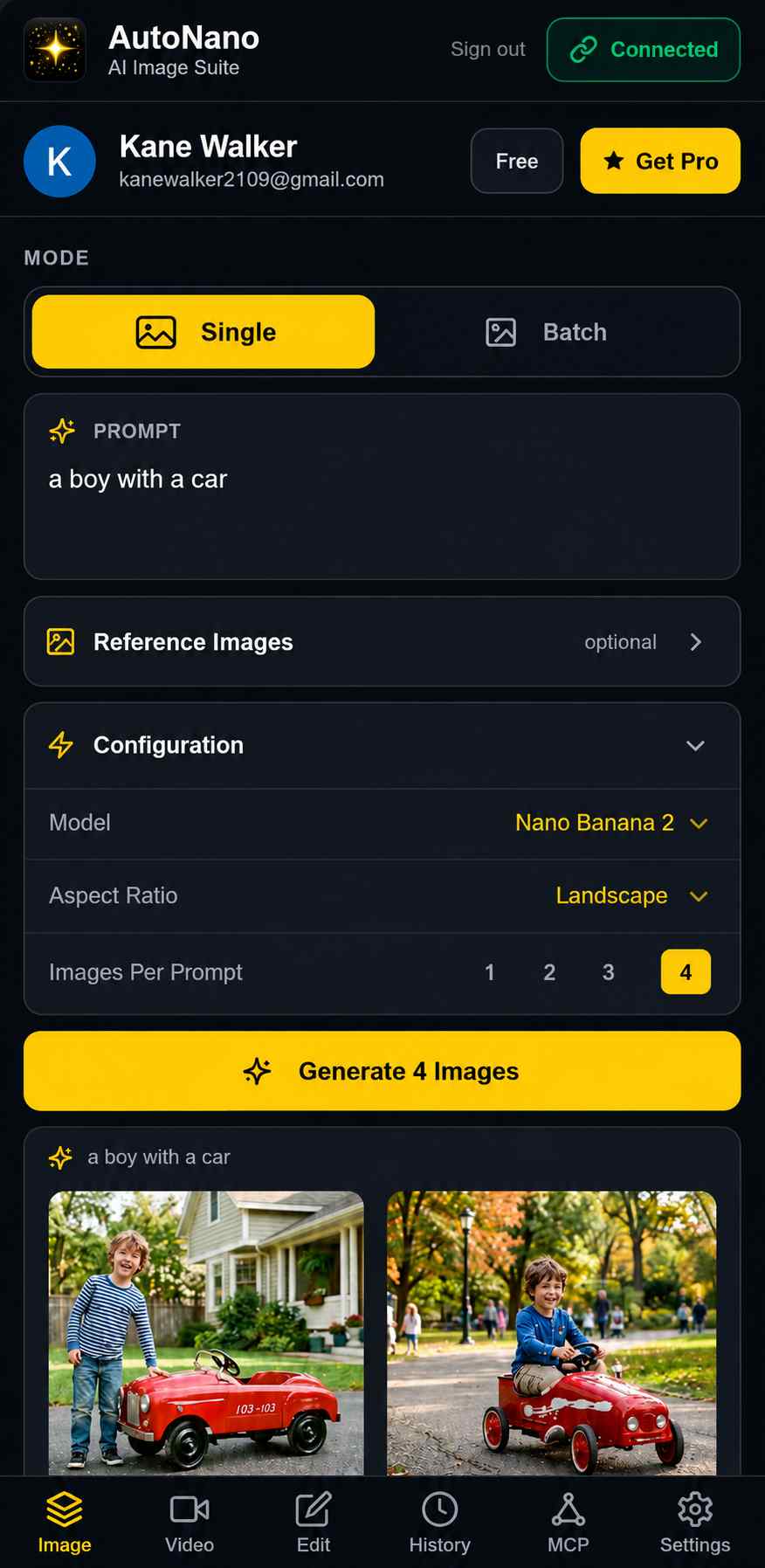
AutoNano Image tab showing prompt, reference images, model, and generation controls

Create images from one prompt or switch into batch mode for prompt lists. Choose Nano Banana 2, Nano Banana Pro, or Imagen 4, then control ratio, count, references, downloads, and queue speed.

Prompt slots

Focused

Media inputs

Images + refs

Automation

Flow tab

History

Session-based

What this unlocks

Single prompt generation or image batch queue
Nano Banana 2, Nano Banana Pro, and Imagen 4
1, 2, 3, or 4 images per prompt
Landscape or portrait output
Up to 4 reference images

Workflows

Generate, Edit, Batch, and Automate Without Losing Flow Context

AutoNano covers the actual side-panel loop: connect a Flow project, run media jobs, recover the session, download outputs, keep local history, and expose the same workflow to MCP clients.

AutoNano · Image Tab
Generate Images One Prompt or One Queue at a Time
Image Tab

Generate Images One Prompt or One Queue at a Time

Write a prompt for a quick run, or paste a full prompt list for batch mode. AutoNano keeps model, ratio, count, references, downloads, and queue progress in the same surface.

Nano Banana 2, Nano Banana Pro, and Imagen 4
1-4 images per prompt
Landscape or portrait output
Up to 4 reference images
Pause, resume, stop, and reset batch queues
Learn more
AutoNano · Video Tab
Generate Videos from Text, Frames, or References
Video Tab

Generate Videos from Text, Frames, or References

Choose Text, Start, Start+End, or Ref mode, then generate one video or run a prompt list with shared keyframes and reference images.

Text, start frame, start+end frame, and reference modes
Fast or Lite Veo 3.1 options
Landscape or portrait videos
720p download or 1080p upscale attempt
Video batch delay control
Learn more
AutoNano · Edit Image Tab
AI Image Editing Workflow
Edit Image Tab

AI Image Editing Workflow

Upload a source image, write the edit instruction, add optional references, and send the source into Flow as a base image with the right aspect ratio.

Upload PNG, JPG, or WEBP source images
Natural language edit instructions
Preset edit starters for common changes
Auto landscape or portrait detection
Edited outputs saved to History
Learn more
AutoNano · MCP Tab
Let Claude, Codex, and Cursor Call the Same Flow Pipeline
MCP Tab

Let Claude, Codex, and Cursor Call the Same Flow Pipeline

Generate an MCP URL, connect an external AI client, and watch task activity as the server relay sends image, video, or edit work to your extension.

MCP key setup and copy action
Guides for Claude Desktop, Claude Code, Cursor, Codex
WebSocket relay to the extension
Activity feed with result thumbnails
Image, video, and edit task support
Learn more

How It Works

From Flow Project to Downloaded Media

Step 01

Connect AutoNano to Google Flow

Sign in with Google, open Google Flow, enter a project page, and keep the Flow tab open while AutoNano checks the connection.

Step 02

Start with a Prompt, Frame, or Source Image

Create from text, upload video keyframes, add reference images, upload an edit source, or paste a batch prompt list.

Step 03

Choose Flow Settings Once

Select model, aspect ratio, output count, references, auto-download, folder, server target, or video mode before the run.

Step 04

Run, Download, Review, Automate

Track queue status, download images or MP4s, review sessions in History, and let MCP clients trigger the same pipeline.

Flow
Project tab
1-4
Media count
History
Session review

one connected loop

Flow auth, media inputs, downloads, and MCP stay together

Core Capabilities

Core Controls That Match the Way Flow Work Is Made

AutoNano keeps Flow connection, model selection, references, keyframes, batch queues, downloads, history, and MCP automation in one connected extension experience.

Flow Model Selection

Choose Nano Banana 2, Nano Banana Pro, or Imagen 4 for image generation and editing, with automatic fallback when a model quota is exhausted.

1-4 Outputs Per Prompt

Generate 1, 2, 3, or 4 images or videos from a prompt so you can compare directions without repeating the setup.

Reference Images and Keyframes

Upload up to 4 references for images and video Ref mode, or use start and end frames to guide video motion.

Video Modes

Use Text, Start, Start+End, or Ref mode with Fast or Lite Veo 3.1, landscape or portrait ratio, and optional 1080p upscale.

Batch Control

Import .txt or .csv prompt lists, set queue delay, then pause, resume, stop, reset, and inspect per-prompt status.

MCP Automation

Connect Claude Desktop, Claude Code, Cursor, or Codex through an MCP URL so external tools can trigger generation.

Instead of
manual Flow
one action at a time
->
You get
queues + MCP
through the same Flow project

Results can be reviewed, edited, downloaded, or called from external AI tools

Explore Flow Controls

Before vs After

What Gets Easier When Flow Becomes a Control Panel

Connect to the right Flow project

Keep checking tabs and project URLs yourself

Connection check, project detection, and recovery prompts

Generate images from repeated prompt lists

Paste and click through Flow one prompt at a time

Shared image batch queue with pause, resume, and stop

Create videos from text, keyframes, or references

Rebuild mode, frames, and output settings per run

Video single and batch modes with shared visual inputs

Let AI coding tools request media

Copy prompts between chat, terminal, and browser

MCP URL for Claude, Codex, Cursor, and external clients

Review and download generated media

Search your Downloads folder with no session context

Local History grouped by Generate, Video, Edit, and Batch

The result?

Flow auth, prompts, references, keyframes, downloads, history, and MCP activity stay in the same product.

Explore Workflows

Designed for Repeatable Flow Automation

The product is organized around the real Flow loop: connect, configure, generate, edit, batch, download, review history, and expose the same work to MCP clients.

Flow Session Awareness

Detects the Google Flow tab, checks for an active project page, refreshes auth, and warns when the Flow tab needs attention.

Persistent Defaults

Set default image model, aspect ratio, images per prompt, batch delay, output folder, auto-download, and server target.

Image and Video Inputs

Use image references, edit source images, video start frames, end frames, and reference images from one side-panel workflow.

Batch Visibility

Track prompt queues through pending, running, done, and failed states with pause, resume, stop, and reset controls.

Local Session History

Review generated images, edited outputs, videos, and batch sessions with previews and download actions.

MCP Activity Feed

Watch Claude, Codex, Cursor, and other MCP calls as they process, complete, fail, and return media previews.

Complete Flow Control Surface

Six Tabs That Cover the Real Flow Loop.

AutoNano connects Flow project detection, image and video generation, edit workflows, local history, MCP automation, and output settings in one Chrome Extension.

Generate images through an open Google Flow project with model, ratio, count, and references
Run image batches with shared settings, queue status, pause, resume, stop, and reset
Generate videos from text, start frames, start/end frames, or reference images
Run video batches with shared mode, quality, ratio, count, and delay
Edit existing images with text instructions, source image upload, and optional references
Review Generate, Video, Edit, and Batch sessions in local History
Download images and MP4s to a configured output folder
Create an MCP URL for Claude Desktop, Claude Code, Cursor, and Codex

Built for repeatable Flow work

Defaults, History, and MCP activity help you keep context across sessions instead of starting from zero.

Open the Control Surface

Default Controls

Model, ratio, count, delay

Output Folder

Choose where media lands

MCP URL

Connect external AI clients

Free Limits

5 image prompts, 3 video prompts, 20 history items

Pro is already designed into the product.

The current public build runs on the Free plan. Pro is planned for unlimited image batch, unlimited video batch, full generation history, and priority support.

$9

planned

Operational Backbone

The invisible parts are part of the product.

AutoNano is more than a prompt form. It manages auth, Flow recovery, local persistence, background automation, quota decisions, downloads, server connection, and MCP keys behind the side-panel UI.

Google sign-in + AutoNano JWT

AutoNano signs in with Chrome Identity, can refresh Google tokens silently, exchanges the Google token for an AutoNano JWT, and uses that JWT for profile, MCP keys, analytics, and the server relay.

Flow tab recovery

The extension checks for a Flow tab, verifies the active project page, refreshes auth from inside that tab, reloads after long idle periods, and resets the Flow tab after batch completion.

Background worker pipeline

A Manifest V3 service worker uploads media, starts image batches, runs edits, generates and polls videos, downloads files, checks credits, and emits status back to the side panel.

Quota and fallback handling

When an image model hits per-model daily quota, AutoNano tries the fallback chain: Nano Banana 2, Imagen 4, then Nano Banana Pro. If all fail, it checks Flow credits before stopping.

Local persistence

The side panel keeps signed-in UI state, active tab, sub-tabs, batch composer, and local History. Chrome storage keeps Flow settings, AutoNano JWT, and Google auth user data.

MCP keys and activity

Users can generate, copy, regenerate, or revoke an MCP URL. MCP calls appear in an activity feed with connector badges, processing state, previews, downloads, and failure details.

Server + relay

AutoNano talks to both Flow and the AutoNano API.

The Flow tab is used for authenticated generation. The AutoNano server is used for sign-in exchange, user profile, MCP keys, analytics, and the WebSocket relay that lets external tools dispatch work to the extension.

Settings coverage

Every default has a job.

Generation defaults

ModelAspect ratioImages per promptBatch delay

Output

Download folderAuto-downloadUnique filenames

Server target

Production APIServer relaySaved target migration

Runtime messages

START_BATCHSTART_VIDEOSTART_EDITDOWNLOAD_FILE

FAQ

Frequently Asked Questions

Image · Video · Edit · History · MCP · Settings

Turn Google Flow Into a Side-Panel Control Room

Connect a Flow project, run images and videos, edit source assets, batch prompt lists, download outputs, review local history, and let MCP clients call the same pipeline.

Flow project detection
Image + video batches
MCP activity
Persistent defaults